Multi-Factor Authentication for users
To enhance account security and align with modern security standards, Multi-Factor Authentication (MFA) has been introduced in the INDIGO IAM service.
How to enable MFA
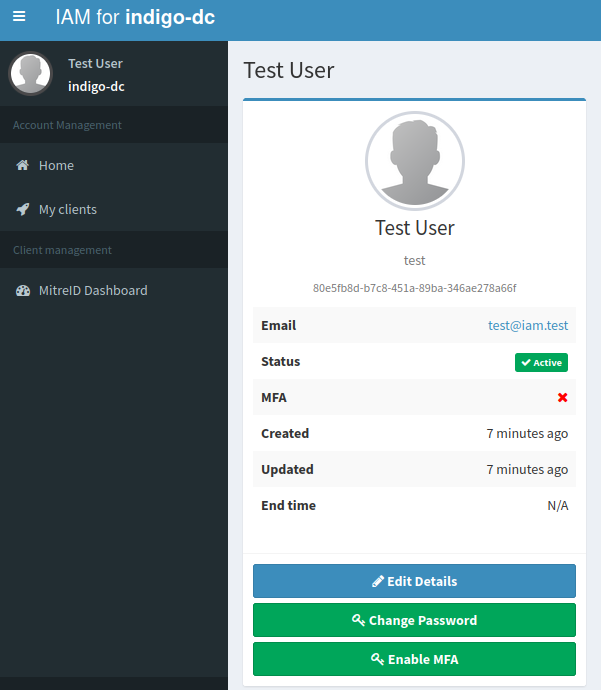
Authenticated users can enable MFA through a button in their homepage.
Steps to enable MFA:
-
Click the Enable MFA button
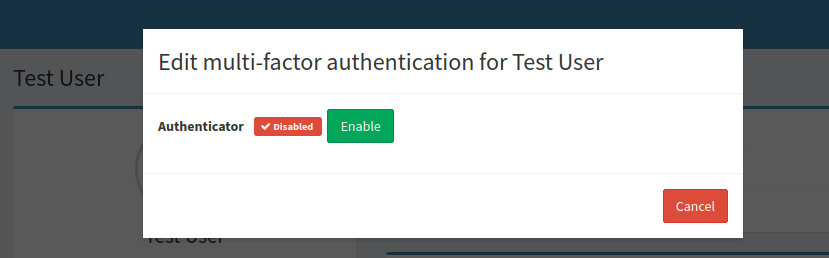
Then, click on Enable.
-
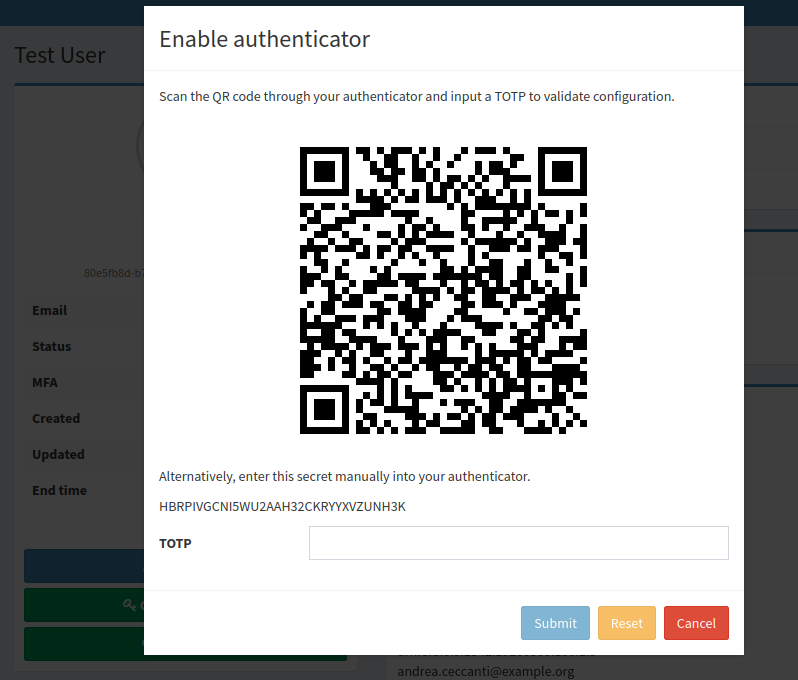
Confirm activation
A dialogue box will appear, prompting the user to enter a Time-based One-Time Password (TOTP) generated by an authenticator (e.g., Ente Auth app).
-
Submit the TOTP
Enter the TOTP into the field provided and click Submit. If the code is correct, MFA will be successfully enabled.
-
Login with MFA
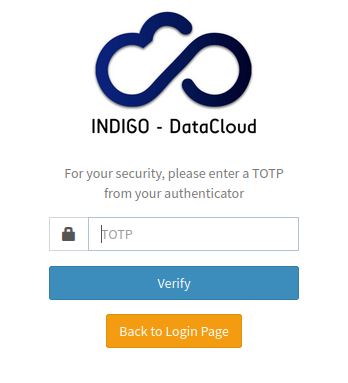
Once MFA is enabled, each login will require:
- A primary authentication method (e.g., username and password, SSO or X.509 certificate)
- A second factor (the TOTP) entered on a follow-up page
How to disable MFA
Users can disable MFA by following these steps:
-
Click on Disable MFA button
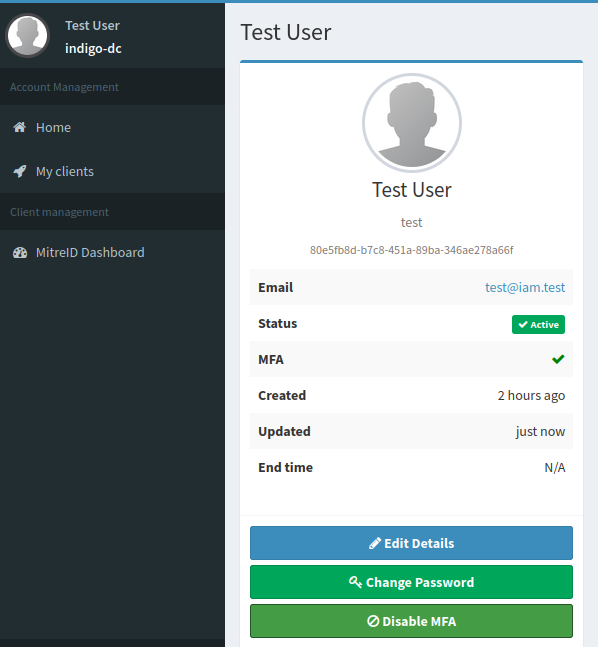
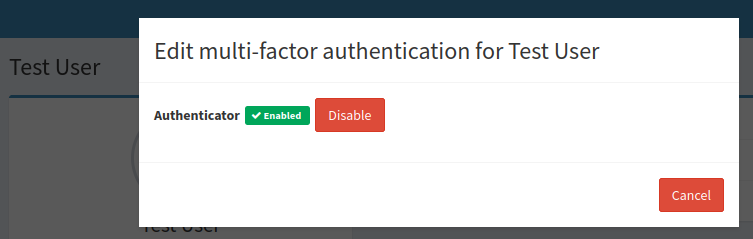
Then, click on Disable.
-
Confirm deactivation
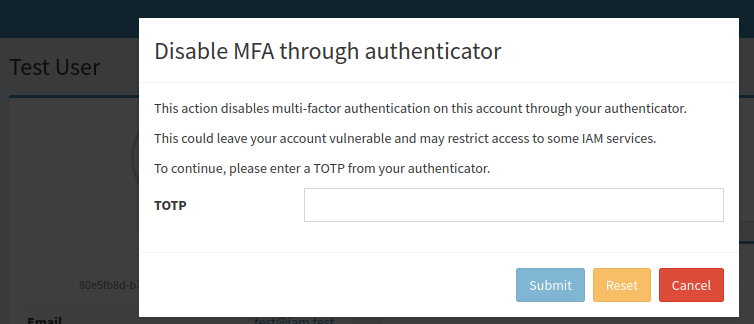
A dialogue box will appear, prompting the user to enter the TOTP.
-
Submit the TOTP
Enter the TOTP into the field provided and click Submit. If the code is correct, MFA will be successfully disabled.
From this point forward, the user will no longer need to provide a second authentication factor during login.
Problems with the authenticator app
If users experience issues with their authenticator app, they can request IAM administrators to disable MFA on their behalf and then setup again the TOTP.