Registration & Enrollment
IAM implements a flexible registration service, either with or without the intervention of an IAM admin. If IAM is configured such to enable an authomatic user enrollment flow, it must login from an external and trusted SAML/OIDC provider (see here).
Admin-moderated user enrollment
When the Spring profile registration is enabled, IAM allows users to register into the application
and set their own username/password, enabling a local authentication to the application.
By default, when users apply for membership in an
organization, administrators are asked to validate membership requests.
Anyway, IAM also allows to registrate users after login with an external provider.
Registration with external IdP
When an external OIDC or SAML IdP is used to authenticate users, IAM allows to configure:
- Whether users are required to authenticate through an external IdP and optionally which ones
- Which information must be retrieved from the IdP to fill the account creation form
The relevant settings must be under the following hierarchy of a custom configuration file:
iam:
  registration:
Together with the registration properties, the Spring oidc profile must be added to support login with an external OIDC provider, while the saml profile must be used to support login with an external SAML provider.
Requiring external authentication
To require that users must authenticate through an external IdP, you need to set the
parameter require-external-authentication=true. You can also specify the type of external
IdP (oidc or saml) and require one specific issuer.
The following fragment is an example of authentication with the (OIDC-based) CERN SSO required before being redirected to the registration page. It also defines how information from identity tokens issued by CERN SSO is mapped to IAM membership information
iam:
  registration:
    require-external-authentication: true
    oidc-issuer: https://auth.cern.ch/auth/realms/cern
    authentication-type: oidc
Filling information from IdP
The first time a user authenticates in an IAM instance through an external provider, the account creation form will be displayed. It is possible to request that some of the fields are filled with the value of an IdP attribute.
To enable filling the creation form with values provided by the IdP, the contents
of the custom configuration file should be something similar to
(here we show the default configuragtion already in place with the Spring registration profile):
iam:
  registration:
    fields:
      name:
        read-only: false
        field-behaviour: mandatory
        external-auth-attribute: given_name
      surname:
        read-only: false
        field-behaviour: mandatory
        external-auth-attribute: family_name
      email:
        read-only: false
        field-behaviour: mandatory
        external-auth-attribute: email
      username:
        read-only: false
        field-behaviour: mandatory
        external-auth-attribute: suggested_username
      affiliation:
        read-only: false
        field-behaviour: optional
The read-only key can be set to true if you want to prevent that the value provided
by the IdP can be modified by the user.
Note that if a field is defined as read-only=true and the value is not provided
by the IdP, it may result that the user cannot submit the account creation form when the field-behaviour
is mandatory.
The field-behaviour key may be set to
- mandatory (default): the corresponding field is present and it MUST be filled with some information
- optional: the field is present but it may be let empty
- hidden: the field is not present at all.
The external-auth-attribue key is used to map the name of the IdP attributes (for SAML), or token claims
(for OIDC), into the mentioned account creation form field.
More in details, the value of the external-auth-attribute refers to the output of the IAM endpoint
/iam/authn-info, available only when a user (registered or not) authenticates through
an external provider. The endpoint returns the user’s information retrieved via remote IdP authentication, as an example (with SAML):
GET /iam/authn-info
{
    "type": "SAML",
    "issuer": "https://idp.infn.it/saml2/idp/metadata.php",
    "subject": "xxxxx@infn.it",
    "subject_attribute": "urn:oid:1.3.6.1.4.1.5923.1.1.1.13",
    "email": "enrico.vianello@cnaf.infn.it",
    "given_name": "Enrico",
    "family_name": "Vianello",
    "suggested_username": "vianello@infn.it",
    "additional_attributes": {
        "GIVEN_NAME": "Enrico",
        "urn:oid:2.5.4.11": "CNAF",
        "urn:oid:1.3.6.1.4.1.5923.1.1.1.1": "staff",
        "ORGANIZATION_NAME": "Istituto Nazionale di Fisica Nucleare",
        "groups": "166_14_26_37264",
        "EPPN": "vianello@infn.it",
        "CN": "Enrico Vianello",
        ...
    }
}
Here, the map from attributes to form fields is the following: the value of the external-auth-attribute is searched as a key of the above response, and if not found in the first level object, it is searched in the additional_attributes object.
Link certificate upon registration
Warning
In order to link the certificate upon registration, a certificate needs to be present in the browser. Make sure to have linked one before attempting the registration.Within the registration fields, it is also present the certificate one. While it may be within the same group as the other fields, its
behaviour is a bit different from the others. Basically, it does inherit the same attributes being read-only, field-behaviour and
external-auth-attribute, but only field-behaviour is to be configured for this field. Therefore, it’s strongly discouraged to add a configuration for read-only and external-auth-attribute.
The default IAM behaviour enabling
the Spring registration profile is
iam:
  registration:
    fields:
      certificate:
        read-only: false
        field-behaviour: hidden
The field-behaviour can be defined as mandatory, optional, or hidden.
Each of the options brings different behaviour to the registration page.
Certificate field being mandatory
If the certificate field is mandatory, then the user must link a certificate upon registration.
If no certificate is present whilst attempting the registration, then the following error will appear:
A certificate is required upon
registration, but noone were presented.
Please link a certificate to your
browser.
The error text can change if the certificate is present, but is linked to a suspended account or another account in general.
Given that the certificate is present and valid, the registration page will show certificate information at the bottom of the page.
If the certificate presented is within 1 month of expiration, then a worning pop-up window is shown to the user.
Certificate field being optional
If the certificate field is optional, then the user may link a certificate upon registration if one is present and valid. In this case, a checkbox with the Link your certificate to the account option will be shown
at the bottom of the registration form.
Warning
One will only be able to check the checkbox if the certificate is valid.Also with this option, if the certificate presented is within 1 month of expiration, then a worning pop-up window is shown to the user.
Certificate field being hidden
If the certificate field is hidden, then the user does not have the option to link their certificate upon the registration request
(nor does one have to be present upon registration).
The checkbox is hidden from the user and no certificate is required.
This will result in an absence of certificate information at the bottom of the page.
Automatic user enrollment
In case of registration through an external SAML/OIDC Identity Provider, IAM offers a flexible user enrollment flow, also without IAM admin intervention.
SAML
In order to enable the automatic enrollment flow via an external IdP, one
should set the following properties (which are provided with the Spring saml profile):
saml:
  jit-account-provisioning:
    # default to false
    enabled: true
    # this default behavior considers all IdPs declared in your
    # application-saml.yml file as trusted
    trusted-idps: all
If one wants to select a subset of trusted SAML IdPs, a comma separated list of entity IDs have to be set, e.g.
saml:
  jit-account-provisioning:
    trusted-idps: https://idp1.test.example,https://idp2.test.example,https://idp3.test.example
OIDC
In order to enable the automatic enrollment flow via an external OIDC Provider
(which are provided with the Spring oidc profile), one
should set the following properties:
oidc:
  jit-account-provisioning:
    # default to false
    enabled: true
    # this default behavior considers all IdPs declared in your
    # application-oidc.yml file as trusted
    trusted-idps: all
If one wants to select a subset of trusted OIDC Providers, a comma separated list of entity IDs have to be set, e.g.
oidc:
  jit-account-provisioning:
    trusted-idps: https://google.test.example,https://facebook.test.example,https://github.test.example
Customize the Note registration field
When a user sumbitts a registration request, the operator can configure if the Note field of the registration form should be shown or not.
The default IAM behaviour enabling the Spring registration profile is
iam:
  registration:
    fields:
      notes:
        read-only: false
        field-behaviour: mandatory
Here we have three possible options for the field-behaviour key (the read-only key should be ignored):
- mandatory (default): the Note field is present and the user MUST fill it with some information
- optional: the Note field is present but the user may let it empty
- hidden: the Note field is not present.
Automatically set the nickname as attribute
Since IAM v1.9.0, during a registration request the username can be automatically added as an attribute named nickname. This process happens both for login with external provider, or when one directly clicks on the Apply for an account button. The nickname value will be the same as the username set during the registration request.
This behavior does not appear by default. To enable it, add to your custom configuration file
iam:
  registration:
    add-nickname-as-attribute: true
or set the environment variable IAM_ADD_NICKNAME_AS_ATTRIBUTE=true.
Once the new IAM user has been created, the Attributes view from the dashboard looks like the following

Configuring the registration button
One can configure the visability of the registration button and its text via the following variables in the config file
iam:
  registration:
    show-registration-button-in-login-page: true
    registration-button-text: Apply for an account
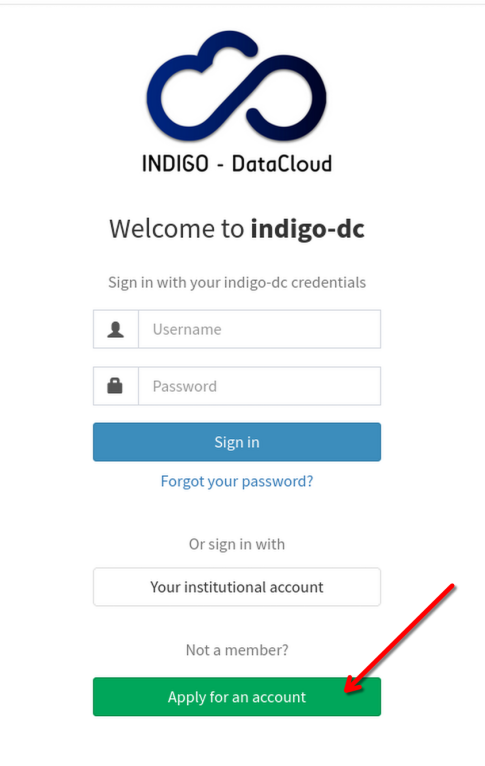
The defualt configuration is defined as written above and can also be defined via the environment variables IAM_REGISTRATION_SHOW_REGISTRATION_BUTTON_IN_LOGIN_PAGE and IAM_REGISTRATION_BUTTON_TEXT.
The aforementioned configuration of the registration button would result in it being rendered as seen below.